
DOWNLOAD THE APP


Customer Services
Copyright © 2025 Desertcart Holdings Limited
DOWNLOAD THE APP

⚡ Power up your productivity with Crucial DDR2 2GB – because slow is so last decade!
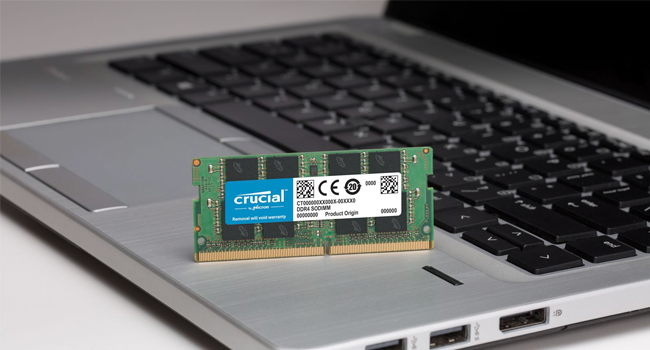
The Crucial 2GB DDR2 667MHz (PC2-5300) SODIMM is a lightweight, reliable laptop memory module featuring a 200-pin form factor and low 1.8V operation. It offers a solid 667 MHz speed with CL5 latency, designed to enhance multitasking and system responsiveness. Perfect for upgrading older laptops, it comes with Crucial’s limited lifetime warranty, ensuring dependable performance and peace of mind.








| ASIN | B000F7QRTG |
| Additional Features | Lightweight |
| Best Sellers Rank | #2,695 in Computer Memory |
| Brand | Crucial |
| Column Address Strobe Latency | 5 |
| Compatible Devices | Laptop |
| Computer Memory Size | 2 GB |
| Customer Reviews | 4.4 out of 5 stars 1,598 Reviews |
| Data Transfer Rate | 667 MHz |
| Form Factor | SO DIMM 200-pin |
| Global Trade Identification Number | 00649528733030 |
| Item Weight | 0.02 Pounds |
| Manufacturer | CRUCIAL TECHNOLOGY |
| Memory Speed | 667 MHz |
| Model Name | Crucial |
| Number of Pins | 200 |
| RAM Memory Technology | DDR2 |
| RAM Size | 2 GB |
| Special Feature | Lightweight |
| UPC | 803982762832 663430910181 649528733030 |
| Voltage | 1.8 Volts |
| Warranty Description | Limited lifetime warranty |
M**K
Not life changing, but it helps
Bought the Acer Aspire One 10.1" D250 Kit at [...]. Very nice machine, good feature set and it works. It came with the usual 1-GB RAM installed. OK but obviously only just enough. Acer sort of claims 1-GB is the max the single slot can take, but every Acer hack website says it'll take 2GB and most say that this is the 2-GB module to use. There is some debate over whether you end up with the full 2-GB or whether the system will only recognize 1.5GB or so. More on that later. I've used Crucial Memory several times before for my PCs and it has always been an excellent performer - and for $32, what the hey. So 24-hours after I bought the Acer, I ordered the 2-GB RAM. Was going out of town so I asked for 2-day shipping. The module arrived the next day - whoa! thanks! I printed out the system specs before I started. Yup, showed 1-GB installed. Took out 1-screw, popped the panel, swapped modules and 2 minutes later I powered up again. Quite a bit quicker to load the OS, but absolutely no indication or messages that anything had changed. Opened a couple of apps, definitely quicker. And, the real reason for buying the 2-GB, I shoot a lot of digi-pics and 1-GB took forever to load the image folders and bring up the thumbnails. The D250 does that a lot quicker now, Checked the system specs again - yup, all 2-GB showing and at work. So, all-n-all, very simple to do, and a distinctly faster machine with no hitches, glitches or hiccups. Still not blazing speed, but a noticeable improvement. May not make me deliriously happy; but the 1-GB would have eventually driven me crazy and I'd have done this out of frustration. A very good experience and a worthwhile investment. And really and truly, anyone can do it.
V**N
Good experience with PC3-8500
I bought a new 13.3in MacBook Pro all alumininum type with the defaulted memory configuration of 2GB. I've bought Crucial DIMMs for my other notebook before and they worked very well so I decided to buy the same Crucial brand (but different type) for my MacBook. I went to the Crucial Web site and found out the right type of memories and checking the MacBook manual also showed PC3-8500 was the right DIMMs. I purchased 4GB of PC3-8500 and the price was very good at Amazon (coupling with the free shipping) so I saved about %35 versus what I could have paid when buying the MacBook with 4GB. Installation was about 10 minutes with most of the time spent trying to open the very tiny screws carefully on the back of the MacBook. My challenge was handling the very tiny screws with my tiny-but-not-so-good screwdriver rather than replacing the DIMMs. I suggest setting the MacBook on a flat surface on top of a towel or something soft so you will not scratch the front of the Macbook. After installation, the MacBook boosted and recognized the 4GB memories right away and everything worked smoothly. No noticeable increase in performance but definitely it will help when running multiple programs at the same time using OS X or Windows XP. I recommend Crucial memories due to their good quality and good Web site showing which type of memories your computer needs. Also kudos to Amazon for offering such a good price (one of the lowest PC3-8500 DIMMs I found). The plus of doing this yourself was saving the built-in 2GB DIMMs which you may use in other computer or give them to friends. Replacing memories is pretty simple and I think anyone can do. Just make sure you have good screwdriver and need to remember exactly the locations of the 8 screws since they are not identical (3 screws at the top are longer than the rest)
M**Z
NOT 100% compatible with some Asus netbooks
I bought this as a recommended upgrade for my Asus EEE 1001P netbook. While it does indeed work and the computer boots up just fine, it does not change clock speeds gracefully while in operation. Why should you care? Well the claimed 8-10 hour battery life of these netbooks is dependent on the software's ability to underclock the RAM and processor when not needed for heavy lifting. Asus calls this their "super hybrid engine". If you disable the super hybrid engine or just leave it in one of the performance modes then this RAM works fine. However when using the Auto mode the computer will not shut down properly. What happens is the screen turns off, but the power never actually turns off eventually killing your battery. Here are two links discussing the phenomenon, which has apparently being going on for awhile and Asus has no intention of fixing it. [...] What to do? I have heard that Kingston RAM does not have this same problem in these particular netbooks, although I haven't had the time to investigate this first hand. Note that this isn't really a problem with this RAM, which is why I still gave it a good rating. It's more of an Asus problem than a Crucial problem.
Z**O
Great Performance Upgrade, Ultra Easy Install
This was an upgrade for my 2 year old Acer Aspire One (NAV50). The computer was starting to run slow and taking forever to load web pages that had any sort of flash ads, and Youtube..forget about it, videos would stop, start, pause, no sound, etc and I was considering just buying a new computer. I decided to try this relatively inexpensive upgrade and wow does it make a difference. Computer runs like new, it powers on in about 1/3 the time and it loads web pages almost as fast as my work computer. Youtube videos play on command with virtually no buffer time. Well worth the money. As for install, super easy. There is only one screw on the back of the computer and the old card pops out with the simple release mechanism, new card pressed in, pushed down with a snap and BOOM, DONE! Card was recognized instantly. Crucial has a card scanner program on their website that takes 30 seconds to determine the compatibility if you arent sure. Highly recommended upgrade.
V**O
Good Memory - Bad Install Instructions
I purchased this memory for my new Asus 1005 HA Netbook. While the price was reasonable and performed as designed, it was rather difficult to get the memory working. There was a video on the Crucial website that showed how to install the memory that was very good. Unfortunately the video and the Crucial website did not mention that after installing the hardware, the netbook will not recognize the 2GB of RAM until you enter the BIOS screen by pressing F2 when the computer starts up. After you press F2 to enter the BIOS screen, you need to save the new memory settings by pressing F10. I spent 1 hour fooling around with the memory until I came across the BIOS setup advice on a negative Amazon review. While this wasn't a problem with Amazon per se, it still was a frustrating experience.
P**S
Amazingly cheap boost for my 1000HE
I own the ASUS Eee PC 1000HE 10-Inch Netbook (1.6 GHz Intel Atom Processor, 1 GB RAM, 160gb HD). First you have to open the cover plate on the bottom of the Eee. That's the ONLY scary part of this process. I've been working on computers since the days of Time-Seared HP systems, so I'm no novice. However, the friction between the plate and the case is such that it felt as if I were going to damage the computer by applying too much force. I read several reviews on line and one mentioned this and that it would be ok. So, I went ahead and applied more force and presto out came the plate without any damage. Then you just release the clips holding the original memory, the card pops up, you pull it out without any force at all, slide the new 2gb card in to replace the original card, replace the cover, reinsert the battery, and turn on the computer. This new memory card worked like a charm and was instantly recognized. You can hit F2 while the computer is booting and go into the bios to check if you'd like, or change it manually if needed, but this is not necessary in the newer 1000HE models. As has been noted elsewhere there are YouTube videos which show the entire process - they will help the novice a great deal.
R**T
Crucial memory is the ticket and very reliable and dependable.
Crucial memory is the ticket and very reliable and dependable. Never had an issue with it once it was installed. The cost to value ration more than warrants Crucial memory! The best memory for the money.
L**K
Perfect for Asus Eee PC 1000/Linux
I own the ASUS Eee PC 1000 10-Inch Netbook (1.6 GHz Intel Atom N270 Processor, 1 GB RAM, 40 GB Solid State Drive, 20 GB Eee Storage, Linux, 6 Cell Battery) Pearl White . About a half-hour ago this Crucial 2GB 667 Mhz CT25664AC667 DDR2 200-Pin SODIMM Laptop Memory card arrived in the mail. I opened up and removed the small plastic cover on the bottom of my computer, released the clips holding the original supplied 1 GB memory card in place (when you release the clips, the card pops up for easy removal), replaced the original card with this one, replaced the cover, inserted the battery, and turned on the computer. This new memory card was instantly recognized. I did NOT have to press the F2 or F10 key. I do not know why some others had to do this (and I do not doubt their experiences) but, immediately after I installed the card and turned on the computer in the normal fashion, I checked the memory available - and there was my 2 GB of RAM showing. The entire mechanical installation process is quite simple and straightforward. The only tool necessary is a small Phillips-head screwdriver (mine came in a screwdriver set from Dollar Tree!) to remove the screws. Please note that, for the Asus Eee PC 1000 line, there are several YouTube videos which show in detail the whole process which takes no more than two or three minutes. The hardest part? Carefully removing the plastic cover on the back of the computer. The screws remove easily but there are several internal plastic clips on the sides of the cover (not visible) which must be released gently so as not to break them (they do seem robust, however). Once the cover is removed, actually removing and replacing the memory is simple. I have used Crucial memory cards in other laptop computers over the years and I have always found them to be completely reliable. Therefore I highly recommend this memory card, especially for Asus Eee PC 1000 owners.
Trustpilot
1 week ago
2 weeks ago